

Why SSL Matters for Reportworq & How to Set It Up

Quote from Matt Hopkins on May 20, 2026, 10:12 amThis post covers why enabling SSL matters, how to set it up, the most common mistakes we see, and how to troubleshoot when things go wrong.
Why SSL matters for Reportworq
Without SSL, traffic between your users' browsers and the Reportworq server travels over plain HTTP. This means that credentials, report data, and API responses could potentially be intercepted on the network. Enabling SSL switches Reportworq to HTTPS and encrypts everything in transit.
There's also a hard practical requirement: SSL is required to use the Reportworq Add-ins for Excel and PowerPoint. If your users work in Excel or PowerPoint via the Office 365 add-in, SSL is not optional.
Benefits at a glance:
- Encrypts credentials and report data in transit
- Required for the Office 365 add-ins to function
- Meets the security baselines expected in enterprise environments
- Eliminates "not secure" browser warnings for users
Self-signed vs. CA-issued certificate
Reportworq supports two approaches:
- Self-signed certificate: Generated directly within Reportworq. Good for getting started quickly or for internal testing. Not recommended for permanent production use. Requires importing the certificate into the Trusted Root Store on every user's machine, otherwise users will see browser security warnings.
- CA-issued certificate (recommended): Issued by a trusted Certificate Authority, typically through your IT or security team. Browsers trust these automatically, so no per-machine import is needed for users. This is what you should move to as soon as practical.
Setup steps - Self Signed
Go to Admin → Configuration → Web Server to begin.
- Enable the SSL Certificate switch in the Web Server section of the Configuration page.
- Specify the certificate path. For self-signed: enter a folder path (e.g. C:\Program Files\Reportworq). Reportworq will create cert.pfx there. For CA-issued: provide the full path including the filename.
- Click the + icon at the end of the SSL Certificate click OK on the confirmation dialog
- Set the DNS entry carefully. This must match the exact address users will type in their browser (e.g. reportworq-prd1.company.com). Do not use localhost. See the pitfalls section below — this is where most problems start.
- Save the certificate password immediately. For self-signed certificates, Reportworq shows the password only once at creation time. There is no way to retrieve it afterward. Store it in a password manager or secrets vault right away.
- Import the certificate into the Trusted Root Store. Right-click cert.pfx → Install PFX → Local Machine → Trusted Root Certification Authorities. This must be done on the Reportworq server, and for self-signed certificates, on each user's machine as well.
- Restart the Reportworq service. SSL changes only take effect after a restart. After the service restarts, users should refresh their browsers. Your URL will now use https:// in the format https://[hostname]:[port].
Setup steps - CA Issued
Before you can begin the below steps you need to ensure you have an SSL Certificate in the .pfx format from IT or security that has been placed in a network folder on the Reportworq server (preferably C:\Program FIles\Reportworq folder). In addition you will need the certificate’s password or someone from IT that has the password they can send to you for setup.
Go to Admin → Configuration → Web Server to begin.
- Enable the SSL Certificate switch in the Web Server section of the Configuration page.
- Specify the certificate path. Provide the full path including the filename. For example C:\Program Files\Reportworq\Cert.pfx
- Click the key icon at the end of the SSL Certificate
- In the Certificate Password dialog, enter the certificate password and then select OK.
- Confirm the password by entering it again and select OK.
- Specify the DNS entry for the certificate and select OK. Important: do not use localhost in the DNS entry.
- Import the certificate into the Trusted Root Store. Right-click cert.pfx → Install PFX → Local Machine → Trusted Root Certification Authorities. This must be done on the Reportworq server.
- Restart the Reportworq service. SSL changes only take effect after a restart. After the service restarts, users should refresh their browsers. Your URL will now use https:// in the format https://[hostname]:[port].
Common mistakes and how to avoid them
- Using "localhost" as the DNS entry. The DNS entry in the certificate must match the exact address users type in their browsers. If you enter localhost, remote users will receive certificate errors. Use the server's fully-qualified domain name or IP address instead.
- Losing the self-signed certificate password. Reportworq displays this password only once at the moment the certificate is created. It cannot be shown again. If lost, you'll need to generate a new certificate and re-import it. Store it somewhere secure immediately.
- Forgetting to import on user machines (self-signed only). Browsers don't trust self-signed certificates by default. Each user's machine needs the certificate imported into Trusted Root Certification Authorities, or they'll see security warnings. This management overhead is the main reason teams move to CA-issued certificates as soon as possible.
- Not restarting the service after SSL changes. Web server and SSL certificate changes only take effect after a Reportworq service restart. Users also need to refresh their browser after the restart completes.
- Keeping a self-signed certificate long-term. Self-signed certificates are a starting point, not a permanent solution. Replace with a CA-issued certificate from your IT/security team as soon as practical.
- Reportworq will fallback to using HTTP when the certificate is invalid. If the certificate being used has an invalid path, incorrect password, or the file doesn’t exist Reportworq will fall back to using HTTP
Troubleshooting:
Users see a certificate error in their browser
Most likely the certificate hasn't been imported into Trusted Root Certification Authorities on that machine. Walk them through the Certificate Import Wizard: right-click cert.pfx → Install PFX → Local Machine → Trusted Root. Have them restart their browser afterward.A DNS mismatch between the certificate and the URL they're using is the other common cause so make sure the address they're typing exactly matches what was entered as the DNS entry when the certificate was created. You can see the exact DNS the certificate is using with the .pfx file with the following command in Windows: certutil -dump "cert.pfx"
It will then prompt you for the certificate password. The Subject property that is shown needs to match the URL they're attempting to access.If the certificate is already installed, but the browser is throwing errors, you can view the cert through the browser and find the certificate domain in the properties dialog.
Reportworq isn't accessible after enabling SSL
Confirm the service has fully restarted and that users are accessing the correct https:// URL with the right port. Browser cache can sometimes be an issue, confirm the if URL can be opened in an incognito browser, and also check that the firewall permits inbound traffic on the configured port.The Excel/PowerPoint add-in keeps showing the login dialog repeatedly
Open Reportworq in a web browser first. If you see certificate errors there, fix those before trying the add-in again. The add-in inherits the browser's certificate trust state, so unresolved browser warnings will surface in Excel/PowerPoint as well.When all else fails submit a support ticket
If you have done all the above steps then be sure to reach out by submitting a support ticket at support@reportworq.com.Full documentation:SSL Certificate Update
This post covers why enabling SSL matters, how to set it up, the most common mistakes we see, and how to troubleshoot when things go wrong.
Why SSL matters for Reportworq
Without SSL, traffic between your users' browsers and the Reportworq server travels over plain HTTP. This means that credentials, report data, and API responses could potentially be intercepted on the network. Enabling SSL switches Reportworq to HTTPS and encrypts everything in transit.
There's also a hard practical requirement: SSL is required to use the Reportworq Add-ins for Excel and PowerPoint. If your users work in Excel or PowerPoint via the Office 365 add-in, SSL is not optional.
Benefits at a glance:
- Encrypts credentials and report data in transit
- Required for the Office 365 add-ins to function
- Meets the security baselines expected in enterprise environments
- Eliminates "not secure" browser warnings for users
Self-signed vs. CA-issued certificate
Reportworq supports two approaches:
- Self-signed certificate: Generated directly within Reportworq. Good for getting started quickly or for internal testing. Not recommended for permanent production use. Requires importing the certificate into the Trusted Root Store on every user's machine, otherwise users will see browser security warnings.
- CA-issued certificate (recommended): Issued by a trusted Certificate Authority, typically through your IT or security team. Browsers trust these automatically, so no per-machine import is needed for users. This is what you should move to as soon as practical.
Setup steps - Self Signed
Go to Admin → Configuration → Web Server to begin.
- Enable the SSL Certificate switch in the Web Server section of the Configuration page.
- Specify the certificate path. For self-signed: enter a folder path (e.g. C:\Program Files\Reportworq). Reportworq will create cert.pfx there. For CA-issued: provide the full path including the filename.
- Click the + icon at the end of the SSL Certificate click OK on the confirmation dialog
- Set the DNS entry carefully. This must match the exact address users will type in their browser (e.g. reportworq-prd1.company.com). Do not use localhost. See the pitfalls section below — this is where most problems start.
- Save the certificate password immediately. For self-signed certificates, Reportworq shows the password only once at creation time. There is no way to retrieve it afterward. Store it in a password manager or secrets vault right away.
- Import the certificate into the Trusted Root Store. Right-click cert.pfx → Install PFX → Local Machine → Trusted Root Certification Authorities. This must be done on the Reportworq server, and for self-signed certificates, on each user's machine as well.
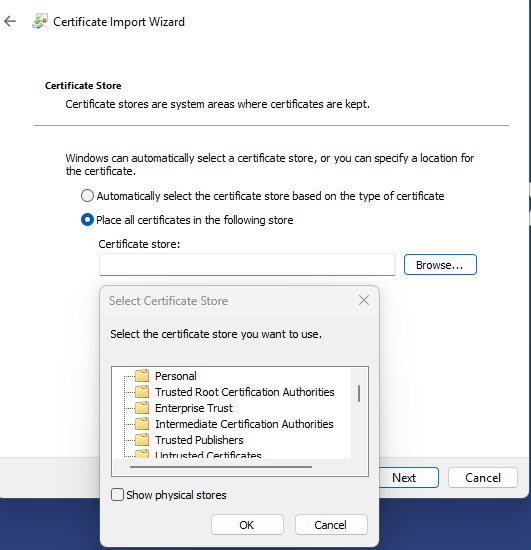
- Restart the Reportworq service. SSL changes only take effect after a restart. After the service restarts, users should refresh their browsers. Your URL will now use https:// in the format https://%5Bhostname%5D:%5Bport].
Setup steps - CA Issued
Before you can begin the below steps you need to ensure you have an SSL Certificate in the .pfx format from IT or security that has been placed in a network folder on the Reportworq server (preferably C:\Program FIles\Reportworq folder). In addition you will need the certificate’s password or someone from IT that has the password they can send to you for setup.
Go to Admin → Configuration → Web Server to begin.
- Enable the SSL Certificate switch in the Web Server section of the Configuration page.
- Specify the certificate path. Provide the full path including the filename. For example C:\Program Files\Reportworq\Cert.pfx
- Click the key icon at the end of the SSL Certificate
- In the Certificate Password dialog, enter the certificate password and then select OK.
- Confirm the password by entering it again and select OK.
- Specify the DNS entry for the certificate and select OK. Important: do not use localhost in the DNS entry.
- Import the certificate into the Trusted Root Store. Right-click cert.pfx → Install PFX → Local Machine → Trusted Root Certification Authorities. This must be done on the Reportworq server.
- Restart the Reportworq service. SSL changes only take effect after a restart. After the service restarts, users should refresh their browsers. Your URL will now use https:// in the format https://[hostname]:[port].
Common mistakes and how to avoid them
- Using "localhost" as the DNS entry. The DNS entry in the certificate must match the exact address users type in their browsers. If you enter localhost, remote users will receive certificate errors. Use the server's fully-qualified domain name or IP address instead.
- Losing the self-signed certificate password. Reportworq displays this password only once at the moment the certificate is created. It cannot be shown again. If lost, you'll need to generate a new certificate and re-import it. Store it somewhere secure immediately.
- Forgetting to import on user machines (self-signed only). Browsers don't trust self-signed certificates by default. Each user's machine needs the certificate imported into Trusted Root Certification Authorities, or they'll see security warnings. This management overhead is the main reason teams move to CA-issued certificates as soon as possible.
- Not restarting the service after SSL changes. Web server and SSL certificate changes only take effect after a Reportworq service restart. Users also need to refresh their browser after the restart completes.
- Keeping a self-signed certificate long-term. Self-signed certificates are a starting point, not a permanent solution. Replace with a CA-issued certificate from your IT/security team as soon as practical.
- Reportworq will fallback to using HTTP when the certificate is invalid. If the certificate being used has an invalid path, incorrect password, or the file doesn’t exist Reportworq will fall back to using HTTP
Troubleshooting:
Users see a certificate error in their browser
Most likely the certificate hasn't been imported into Trusted Root Certification Authorities on that machine. Walk them through the Certificate Import Wizard: right-click cert.pfx → Install PFX → Local Machine → Trusted Root. Have them restart their browser afterward.
A DNS mismatch between the certificate and the URL they're using is the other common cause so make sure the address they're typing exactly matches what was entered as the DNS entry when the certificate was created. You can see the exact DNS the certificate is using with the .pfx file with the following command in Windows: certutil -dump "cert.pfx"
It will then prompt you for the certificate password. The Subject property that is shown needs to match the URL they're attempting to access.If the certificate is already installed, but the browser is throwing errors, you can view the cert through the browser and find the certificate domain in the properties dialog.
Reportworq isn't accessible after enabling SSL
Confirm the service has fully restarted and that users are accessing the correct https:// URL with the right port. Browser cache can sometimes be an issue, confirm the if URL can be opened in an incognito browser, and also check that the firewall permits inbound traffic on the configured port.
The Excel/PowerPoint add-in keeps showing the login dialog repeatedly
Open Reportworq in a web browser first. If you see certificate errors there, fix those before trying the add-in again. The add-in inherits the browser's certificate trust state, so unresolved browser warnings will surface in Excel/PowerPoint as well.
When all else fails submit a support ticket
If you have done all the above steps then be sure to reach out by submitting a support ticket at support@reportworq.com.
Full documentation:SSL Certificate Update